
In this article, you'll learn how to archive a course from the Course List.
For more information on organizing courses, check out:
 |
TL;DR: Archiving a course removes it from your active Courses List without deleting it. It's the right move for a course you're done actively maintaining but still want to keep on record—archived courses can be found again by filtering the Courses List to “Archived.” |
Steps to Archive a Course
-
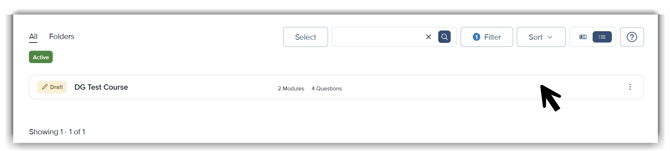
From the Course List, select the course you want to archive.
-
Click the course three-dot menu to open the dropdown menu.
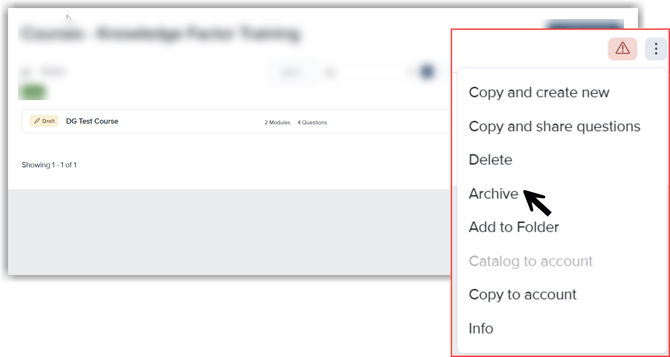
- Click Archive. The course is removed from the active Courses List.
Note: You can archive a course regardless of whether the course is Published or Draft.
Finding an Archived Course
-
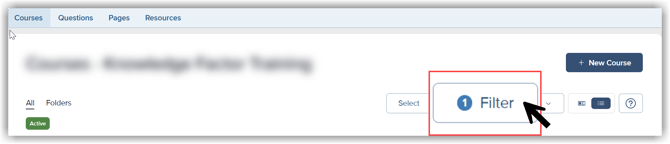
From the Courses List, click Filter to open the filter menu.
-
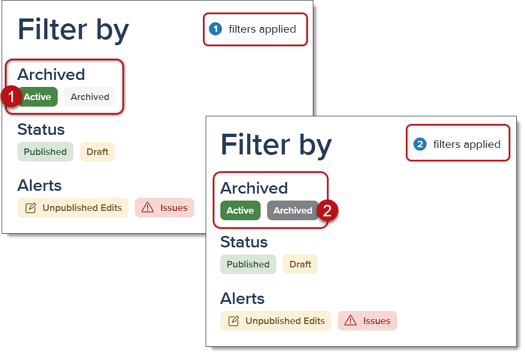
In the Filter menu, select Archived. If you only want to see archived courses, you'll need to take the additional step to unselect the Active filter.
-
Click Apply. The Courses List will now show your archived courses.
Archiving vs. Deleting
Archiving isn't the same as deleting. An archived course still exists in your account; it's just filtered out of the Active view.
- Published Courses: These courses can't be deleted, even if they have unpublished changes. If you need to remove a published course from your view, you would use the Archive option. However, this only hides the course from the Course List. It does not make it unavailable for learners. To learn more about deactivating a course, check out Creating a Course and Adding Users.
- Draft Courses: More flexible, since they've never gone live: you can choose to either delete them permanently or archive them for later, depending on whether you might want to revisit that content.