
In this article, you'll learn about the different tools on the individual course outline page, which provides course details and access to sections, modules, and questions.
For more information on creating courses, check out:
Course Outline Overview
 |
TL;DR: Orients authors to the individual course page: AI Assistant access, the outline side panel, the three-dot menu, and how publishing-issue vs. recommended-change notices work. |
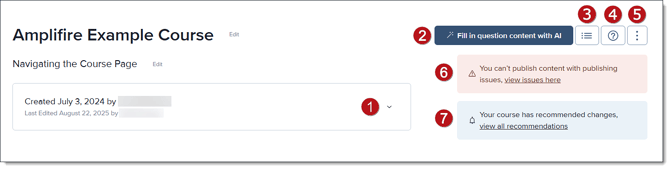
In addition to the meat of the Course Outline (the Course Structure, which is comprised of sections, modules, and questions), the main features of this page include:
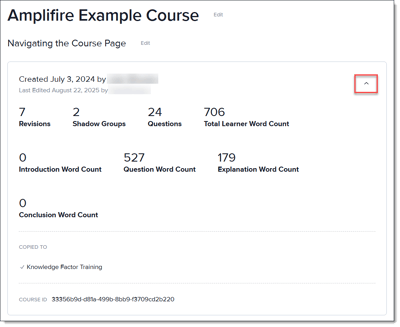
- Course Overview & Tools: Select the arrow in the Course Overview box to see course statistics, if and where it's been copied in another course, and the course ID.
- AI Assistant: Use the Amplifire AI Assistant to create questions and content.
- Course Outline Panel: Provides a view of the course outline on a side panel.
- Help Panel: Opens a side panel with helpful information about the current screen.
- Course Outline Three-Dot Menu: Offers a menu of tools for managing your course.
- Publishing Issues Placard: A notification that your course has issues that prevent it from publication. Click the notification link to display the issues.
- Recommended Changes Placard: Provides recommended changes but the underlying issues will not prevent publication.
Please spend some time creating the foundation of your course. A solid structure will make for an efficient and well-organized course.
From the top panel of the Course Outline, you will add your course and description by clicking edit beside each field. You can also see publishing issues and recommended changes in pink and blue boxes, respectively, that will be necessary to review before you publish your course.
Course Overview and Tools
Click the arrow on the Course Overview & Tools panel to display course information, statistics, and the course ID.
Using the AI Assistant
When enabled, the Amplifire AI Assistant can reference uploaded sources and create multiple choice or multiple correct question content. The AI assistant is not current available to assist with matching questions.

Click the AI Assistant button to begin creating question content.
The Fill in questions with AI menu will display, and you can choose the blank questions the AI Assistant will create content for.
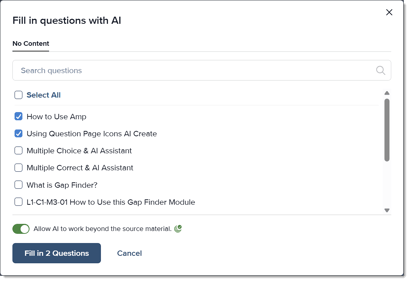
The menu also allows you to choose whether the AI Assistant can use information outside the uploaded source material. Click the Fill in Questions button to create question content with the AI Assistant.
For more information on using Amplifire's AI Assistant, check out:
If the Amplifire AI Assistant is not enabled in your course, contact your Client Solutions Manager (CSM).
Course Outline Panel
The Course Outline button opens the Course Outline Side Panel and provides a quick reference to the course modules and questions.
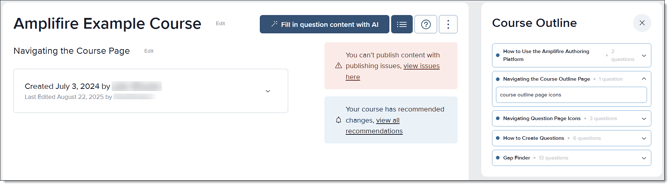
The side panel will stay open as you navigate through modules and questions.
For more information on how the Course Outline side panel can help keep your course organized, check out Using the Course Outline Side Panel.
Help Panel
Selecting the Help button (the question mark icon) will open the Course Outline Help side panel. The panel offers an overview of the Course Outline page and options to dive deeper into specific tools and topics, such as sections and questions. Click the arrow next to a heading for more information on that topic.
Course Outline Three-Dot Menu
The Course Outline three-dot menu provides access to several tools to help manage your course. Click the button to the right of the Help button to open the Three-Dot Menu.
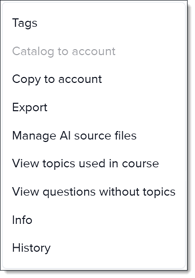
- Tags: Add learning objectives, topics, common mistakes, and audiences.
- Catalog to Account:
- Copy to Account: Copy the content and structure of a course into a sandbox or as the starting point of a new course.
- Export: Export your course as an Excel spreadsheet, HTML file, or plain-text document for searching content, cross-referencing materials between courses, and course review.
- Manage AI Source Files: Add content sources for the AI Assistant to create targeted and intelligent questions and explanations.
- View Topics Used in Course: View all the Topics used in your course in one list.
- View Questions Without Topics: Review all your course questions without Topics on one screen.
- Info: Review the details of your course for planning and editing.
- History: View detailed information on past revisions.
For more information on all the tools in the Course Outline Three-Dot Menu, check out Using the Course Outline Three-Dot Menu.
Publishing Issues Placard
Problems with your course that prevent it from being published are flagged and the orange Publishing Issues Placard notification displays on your Course Outline page. Click the link within the placard to see the course issues.
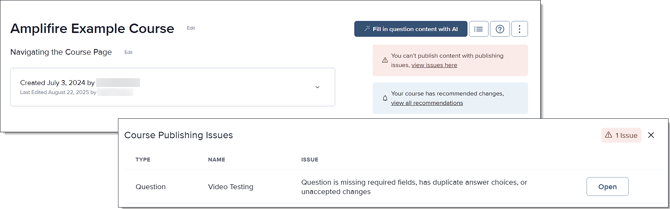
Publishing issues typically stem from the course structure, such as missing or duplicate questions, in the following areas
- Question names, stems, and answer choices
- GapFinder incorrect setting configurations
- Shadow and chain groups without at least two questions
- AI-created questions that require approval
Recommended Changes
Course elements that can be improved but will not prevent publication are flagged as Recommended Changes and are reviewable through the link in the blue Recommend Changes notice. These changes may include missing topics and missing alt text in images.
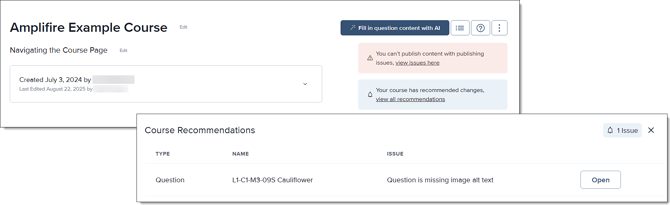
Note: Using all the tools available on the Course Outline page, such as the AI Assistant and the Help panel, can enhance your authoring experience and greatly improve your content.
For more information on using the Course Outline and producing outstanding course content, check out the following articles: