
In this article, you'll learn about how to create an informational modules.
For more information on the importance of informational modules, check out:
 |
TL;DR: This article provides step-by-step instructions on building static, page-based modules (text/image/video/H5P) with no questions—best kept concise (~300 words/page) and used for foundational or compliance content. |
The Informational Module lets you deliver course content using text, images, videos, and other dynamic media. Ideal for guiding learners through new material before interactive or assessment-based modules, it provides a visually engaging way to introduce concepts or share supporting materials.
You can easily add and organize pages with various multimedia elements to enhance learning and engagement. To create an Informational Module:
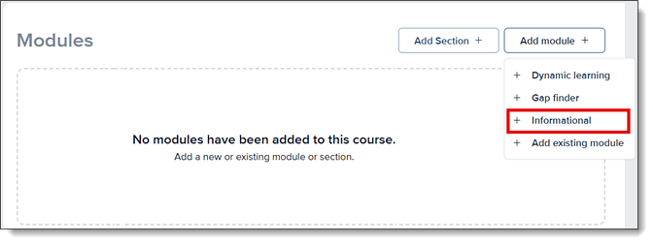
- From the Modules section of your course, click Add module (+).
- Select Informational from the dropdown menu.
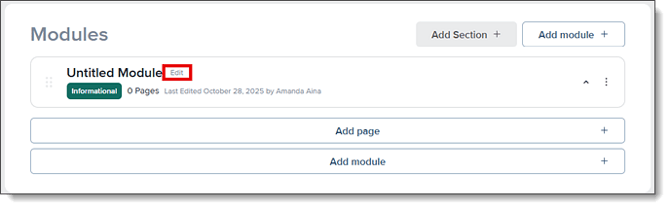
 A new untitled module will appear in your course outline.
- Click Edit to rename your module.
Adding Pages
After creating your Informational Module:
- Click Add page (+) under the module name.
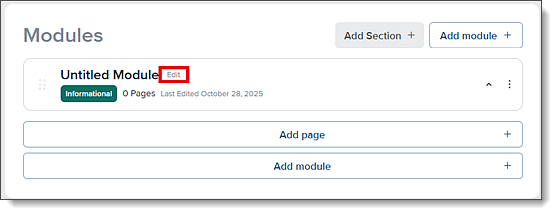
- Choose New page to create a fresh page or Add existing page to reuse a previous one.
- A new untitled page will appear in your course outline.
- Click Edit to rename your page.
- Each page can contain multiple content blocks. Such as text, images, or embedded media.
Editing a Page
Once a page is created, you can edit it directly:
- Click on the page title to open the editing view.
- Add Tags to help categorize your content (e.g., Learning Objectives, Topics, Common Mistakes).
- Use the Add Content toolbar to insert new elements:
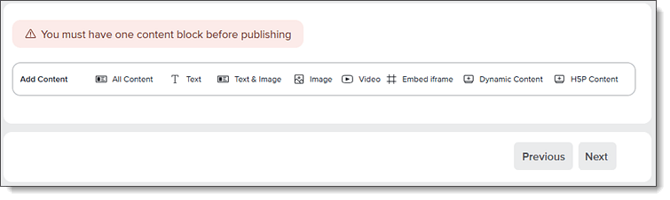
- Text or Text & Image
- Image
- Video
- Embed iFrame
- Dynamic Content
- H5P Content
Note: You must include at least one content block before publishing your module.
Navigating Through Pages
When your Informational Module contains more than one page, you can navigate between them using the Previous and Next buttons located at the bottom of the screen.
- When only one page exists, the Next button is grayed out, indicating there are no additional pages to view.
- Once you add another page to the module, the Next button becomes active, allowing you to move through your content in order.
- Use the Previous button to return to the previous page.
Note: You can also use the Course Outline panel on the right side of the screen to jump directly to any page within your module.
Editing Tools
When editing any content block, an editing toolbar appears with options for:
- Formatting: Bold, bullets, alignment, and font.
- Insert Elements: Images, tables, equations, and media files.
- Dynamic Embeds: Add iFrames or external dynamic content.
Hover over any icon in the toolbar to see its label.
Best Practices
- Use concise text and engaging visuals for each slide.
- Keep pages focused—each one should cover a single idea or concept and remain short—under about 300 words.
- Incorporate short videos or animations to explain complex ideas.
- Add H5P content when you want to make your informational module more interactive.
For more information on module types in Amplifire, check out: