
In this article, you'll learn about using information pages in Question Chains.
For more information on Question Chains, check out:
- Shadow and Chain Questions
- Crafting Quality Question Chains
Question Chains in Amplifire allow you to link questions together in a specific sequence, creating a guided learning pathway. While Question Chains primarily contain assessment questions, you can also add an information page at the beginning of the chain to provide learners with essential context, instructions, or reference material before they encounter the chained questions.
When to Use Information Pages in Question Chain
Adding an information page at the start of a Question Chain is useful when you want to:
- Provide context or background before presenting a series of related questions
- Display reference material that learners will need to answer multiple questions (such as a diagram, chart, or scenario description)
- Introduce a case study that subsequent questions will build upon
- Present instructions or rules that apply to all questions in the chain
- Show a video or multimedia element that sets up the scenario for the assessment questions
For example, you might display a patient scenario or workflow diagram on an information page, then follow it with several questions that test the learner's application of that information.
NOTE: Information pages can only be added at the beginning of a Question Chain, before any questions.
Adding an Information Page to a Question Chain
Step 1: Access Your Question Chain
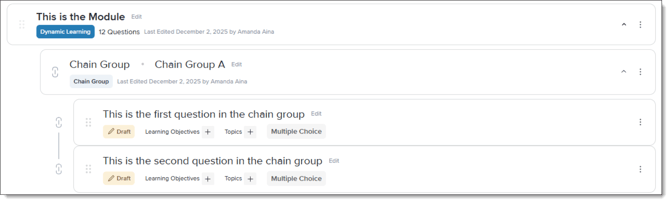
Navigate to the module containing your Question Chain. You'll see your Question Chain listed with any existing questions beneath it.
Step 2: Add a New Page
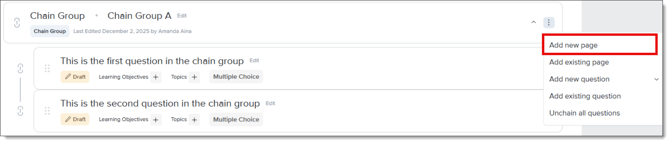
- Click the menu icon (⋮) next to your Question Chain name
- Select Add new page from the dropdown menu
Step 3: Edit Your Information Page
Once created, an "Untitled Page" will appear at the top of your Question Chain, before any questions.
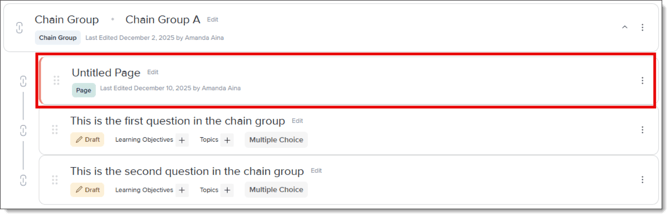
- Click Edit next to the page title to rename it
- Click on the page title to open the editing view
- Add content using the Add Content toolbar:
- Text or Text & Image
- Image
- Video
- Embed iFrame
- Dynamic Content
- H5P Content
- Optional: Add Tags such as Learning Objectives or Topics to help categorize your content
Note: You must include at least one content block before publishing your module.
Adding an Existing Information Page
If you've already created information pages in other modules or courses, you can reuse them in your Question Chain instead of creating new content from scratch. Amplifire offers two ways to add existing pages, each with different implications for content management.
When to Add an Existing Page
Consider reusing an existing information page when:
- You have standard reference material that's used across multiple courses or modules
- You want to maintain consistency in how certain concepts or procedures are presented
- You're building multiple Question Chains that require the same introductory content
- You want to save time by leveraging content you've already developed
How to Add an Existing Page
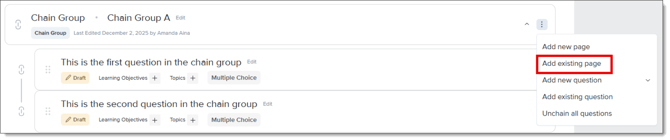
- Click the menu icon (⋮) next to your Question Chain name
- Select Add existing page from the dropdown menu
- A content browser will open, displaying all available pages from your course library
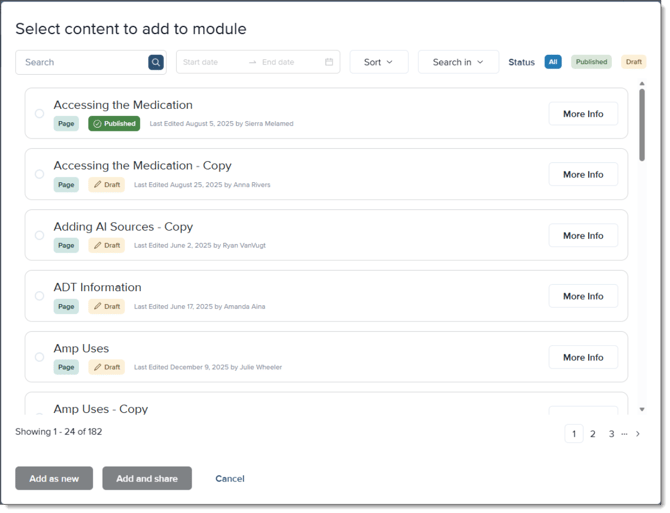
- Use the Search bar or filters (date range, status) to locate your desired page
- Click on the page you want to add to select it (the row will highlight with a blue border)
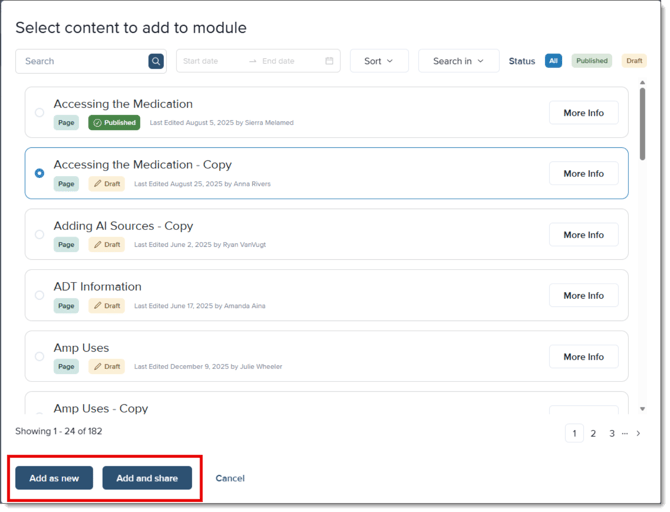
- Choose how you want to add the page:
- Add as new – Creates an independent copy
- Add and share – Links to the original shared content
- Customize existing content as needed
Best Practices
- Keep information pages concise and focused learners should be able to review the content quickly before moving to questions
- Use visual elements like images, diagrams, or videos to make reference material more engaging
- Ensure that the information provided is directly relevant to the questions that follow in the chain