In this article, you'll learn how to use the Question List to effectively search for, review, and manage questions within your account.
If you would like more information on how to add existing questions to a course, check out:
 |
TL;DR: Search, filter, and manage all questions in your Amplifire account using the Question List, and add questions to modules individually or in bulk. |
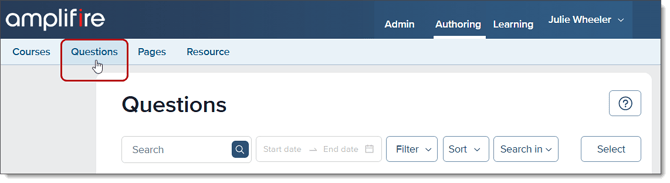
To access the Questions List, click on Questions at the top of the page to view all questions in your account.
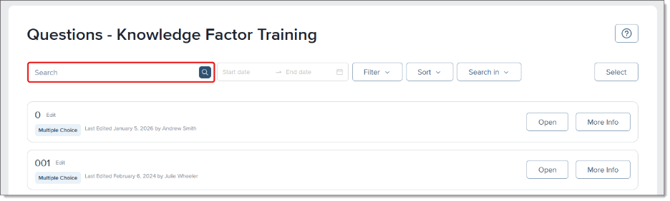
Use the Search bar to enter keywords related to the question you're looking for. To refine your search, use quotation marks around the search terms to find exact matches.
Narrowing Search Results
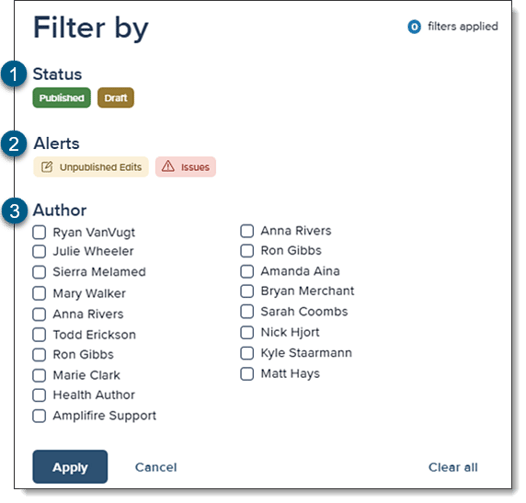
You can filter results by:
-
Status: This is especially helpful if you have multiple copies of a question and the one you want is published (or draft).
-
Alerts: Filtering questions by alerts can help you find questions that might need work, or that have had edits made since the last time they were published.
-
Author: You can limit your search to a specific author if you know who wrote the question you're looking for, or if more than one question with the same name exists.
Searching Within Specific Parts of Questions
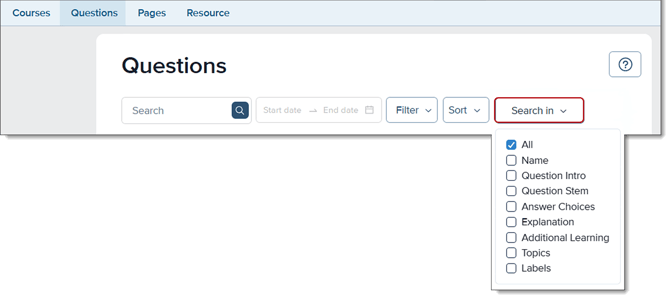
To find questions containing specific words in the name, click on Search in to display the options.
Sorting Search Results
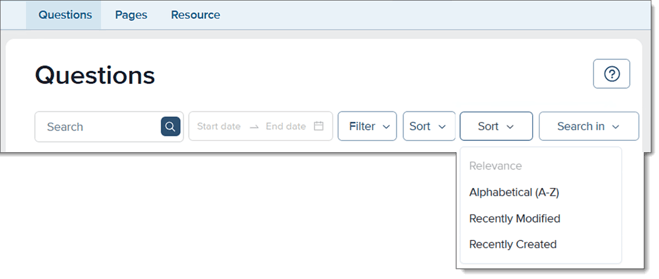
Sort results by:
-
Relevance
-
Alphabetical order
-
Recently modified
-
Recently created
The default sorting is by relevance.
Reviewing Individual Questions
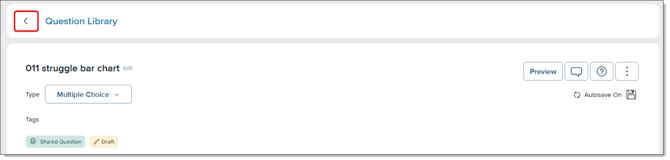
If there is a question that you would like to review in detail, click the Open button. This will show you the question in its entirety.
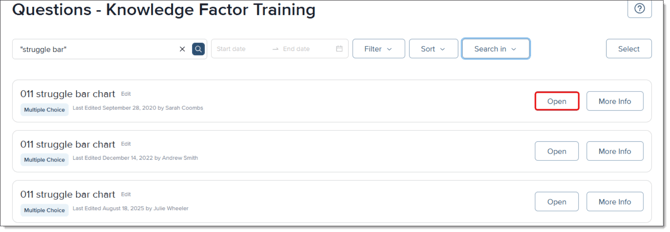
To return to the list of questions, use the back arrow in the upper left corner.
Accessing More Information
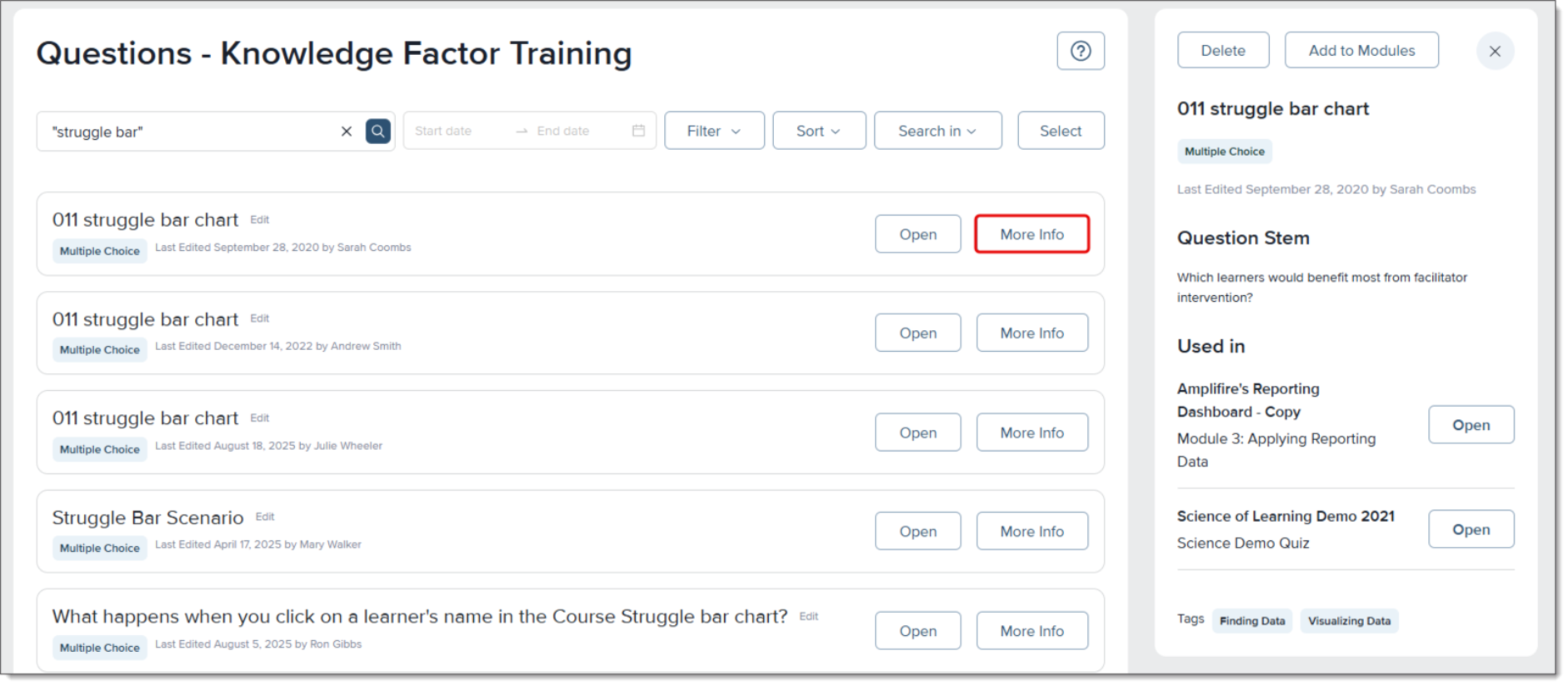
Click the More Info button to see details about the question, including the type of question, the question stem and which courses the question is used in.
Adding Questions to a Module
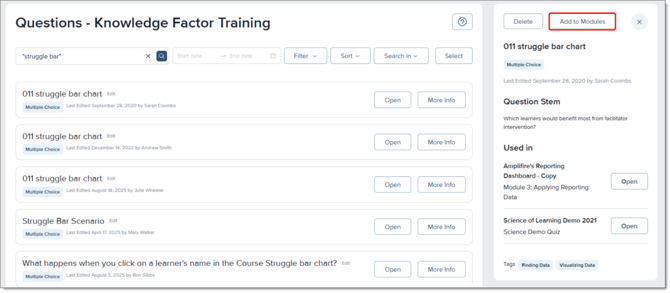
From the information slide out:
- Click the Add to Modules button
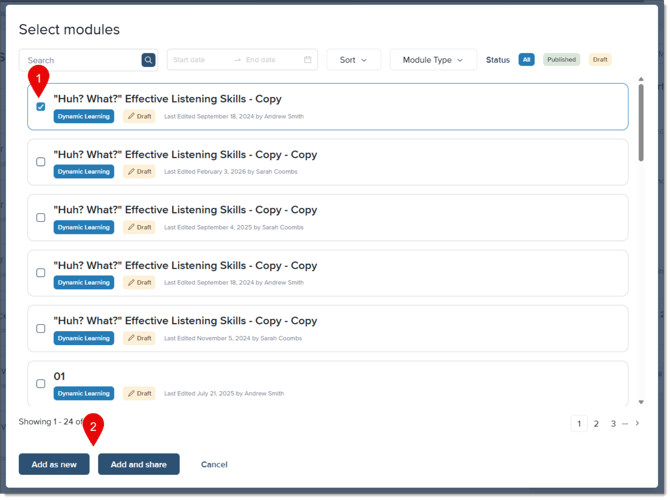
- Select the desired module and choose:
- Add as New (creates an editable copy)
- Add and Share (links the question to the original)
Adding Multiple Questions to a Module
From the question list:
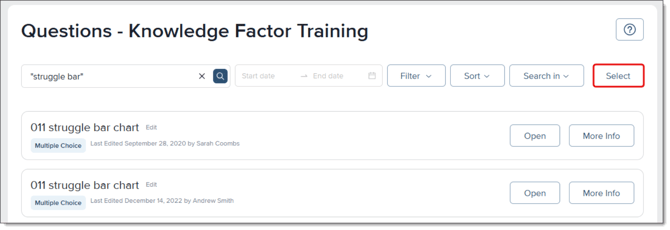
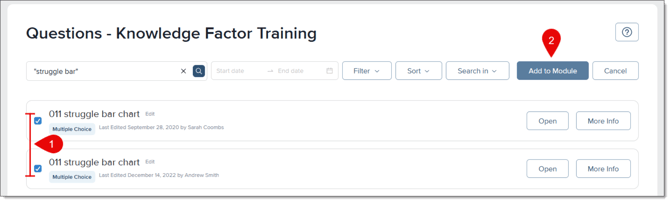
- Use the Select button and then choose questions to be added to a module
- Click Add to Module and follow the same steps as above