
In this article, you'll learn how to review a course from the Amplifire learning platform.
For more information on leaving comments, check out Leaving Comments in an Amplifire Course.
Whether you are a SME (Subject Matter Expert) reviewing a course from the learner’s perspective or a learner taking a course, there are times that you would like to be able to view the explanations ("What You Need to Know”) for every question. As a reminder, learners typically see eight questions in a learning round followed by the explanation only for question(s) that are not answered confidently and correctly. If you answer a question confidently and correctly you will not automatically be shown the explanation.
But there are THREE ways to review every question and its associated What You Need to Know (explanation):
1. Review Correct Answers
At the end of each learning burst you will see a message to start the next round. At this time, you can click Review correct answers and which will allow you to view all the questions and explanations for that round.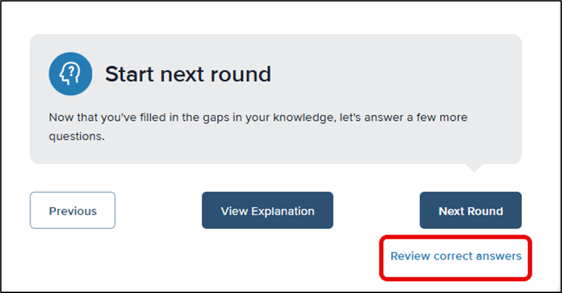
2. Review Learning
At the end of the module, you will see the Congrats You can click Review Learning which will take you to an overview page of all the questions.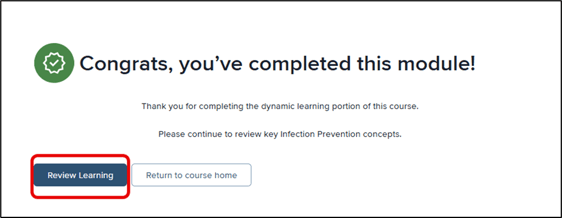
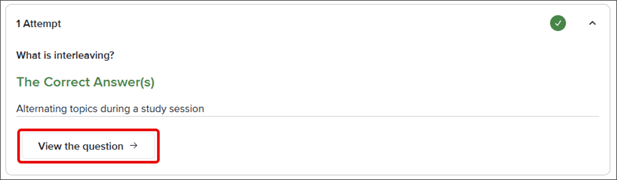
Use the carrot on the right-hand side of a question to open it.
From there, click View the question which will take you to the specifics of each question and its associated explanation.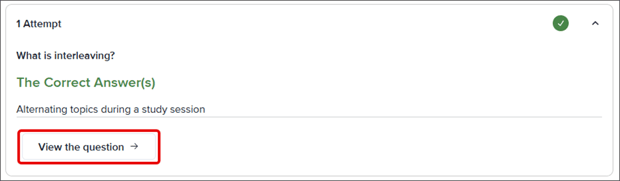
3. Review from Course Home
After you have completed a course, navigate to your course home page, click the course name and then select Review. This will take you to an overview page of all the questions contained in a module. Again, use the carrot to open a question and then click View the question to see the question in its entirety and the associated explanation.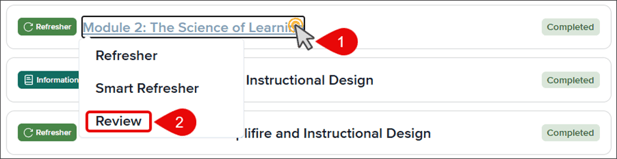

For more information, check out: