
For more information on using multimedia, check out Multimedia Best Practices.
 |
TL;DR: A reference for the rich-text editing toolbar: images, tables, equations (TeX-based), file/video/audio embeds, dynamic content, and iFrames, with recommended image sizing per field. |
When you click into any field on the question page, an editing toolbar will appear.

In addition to all of the standard icons such as bold, bullets, alignment, and font, this toolbar includes icons that will allow you to add:
- Images
- Tables
- Equations and symbols
- Add a file
- Add a link
- Video, audio, and text files
- Dynamic content
- iFrames
If you hover over any of the icons, its label will appear.
Images
Amplifire supports JPG, PNG, GIF, and animated GIF image files. Images are now sized by percentage rather than pixels, and we recommend the following percentages for images:
- Question intro/question stem: 40%
- Answer choices: 40-100%
- What You Need to Know field: 40-75%
- Module intro: 40-60%
You can add images to any field. There are two ways to do it:
-
Uploading from your computer
- Inserting with the file browser

Uploading from Your Computer
You can upload images directly from your computer in a couple of different ways.
- Click the caret beside the image icon and select Upload from computer. .

Locate the image in your files and click Open. The image will be added directly to the field you're working in. From there, you can resize, add alt text, and change the orientation of the image. - Drag an image directly from your files into any field in Amplifire to add it to your course.
Inserting with the File Browser
If you've already uploaded your image(s) into Amplifire, you can add them into your course by selecting Insert with file browser.
-
Click the Image icon to browse or upload images using the the Resources menu.

-
The Resources menu is used to sort and search for images that have already been uploaded in your account.
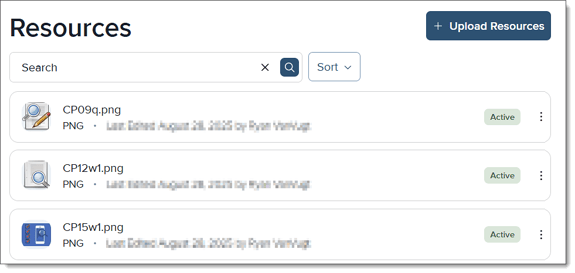
-
- Search for your image either by name, alt text, or by sorting by date. Click on the image to open the side panel. In the side panel, you can see the name of the image, who uploaded it, where it is used, and its alt text. Click Select to add the image to your question.
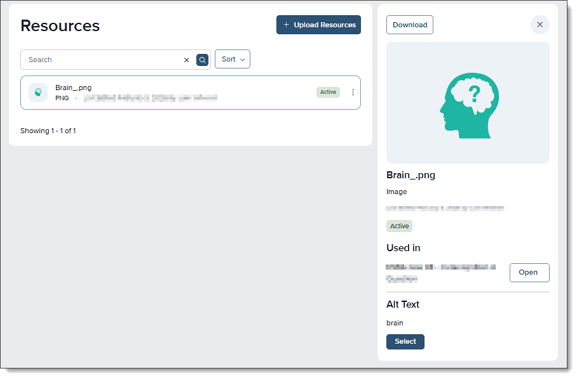
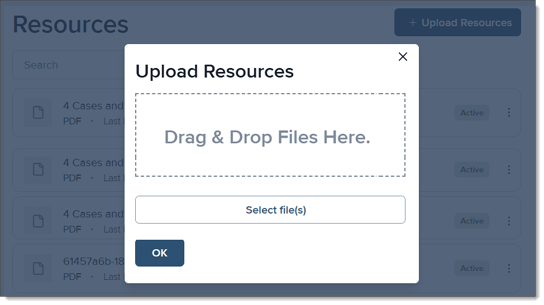
Note: You can also add several images to Amplifire at once. Click + Upload Resources from the Resource Library. You can either drag files into the window or browse to your computer to upload. And you can upload multiple files at once.
Revising Images
Once you've added your images, you can use the inline tools to edit them. Here are a few of the tools available:

|
Image alignment
|
Your alignment choices are:
|
|
Alt text
|
Click the alt text button to add or edit the image's alt text to comply with disability requirements. |
|
Enable Lightbox
|
The Lightbox feature is enabled by default on any image you upload, but if you'd like to disable it (or if you do it accidentally by clicking Unlink--we've all been there!), you can click on the image and click Add Lightbox. This feature is really useful for information-heavy images in the Question Stem and Explanation fields. |
|
Link image
|
Images can serve as links to other resources. Do this by turning off the lightbox and then clicking the Link Image icon and add the hyperlink address. Remember to leave the Displayed text blank. |
|
Toggle caption on
|
Clicking the Caption icon adds a small box below the image where you can add a caption. In Learning, the caption shows in a gray box below the image. |





Tables
To insert a table, click the Table icon on the toolbar to reveal the table size grid.
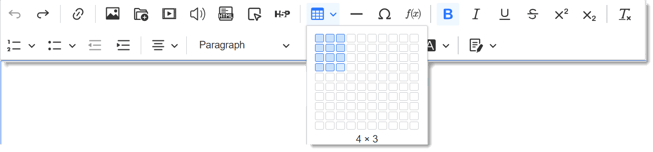
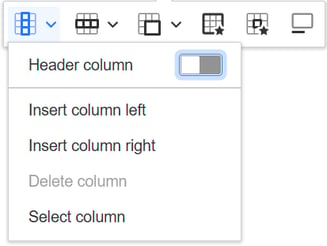
From here, click on your table to reveal the table tools.

|
Column
|
 |
|
Row
|
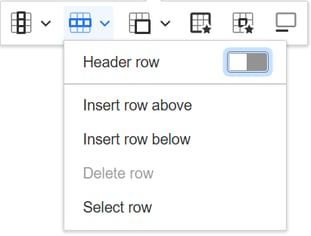 |
|
Merge cells
|
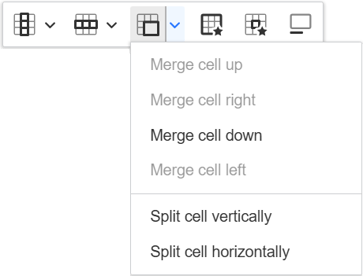 |
|
Table properties
|
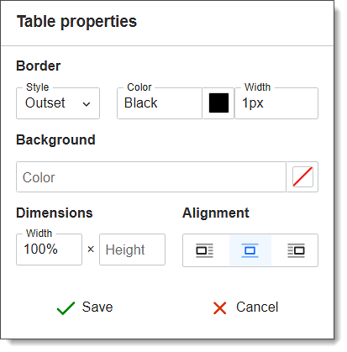 |
|
Cell properties
|
|
|
Toggle caption on
|
Just like with images, clicking the Caption icon adds a small box below the table where you can add a caption. In Learning, the caption shows in a gray box below the image. |


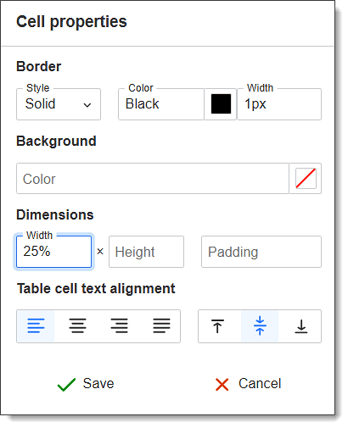
Note: In general, we recommend setting tables to 100% in the table properties. That way they will auto-resize to fit the size of your learner's screen rather than falling off the edge.
Equations and Symbols
Click the omega symbol to expand the symbols menu. Select a symbol and it will automatically populate the question field you are editing.

Open the math and equation editor by clicking the sum symbol. Our math editor uses TeX documentation. If you're unfamiliar with TeX, go here to learn more.
For example, here is how you would input the quadratic equation:
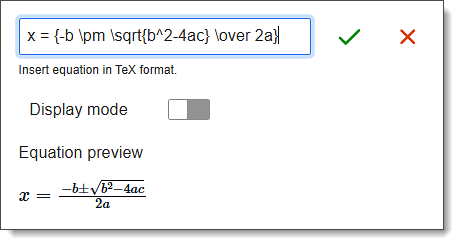
Note: Once you have completed your equation and see the preview below, don't forget to click the green checkmark or it's like it never happened.
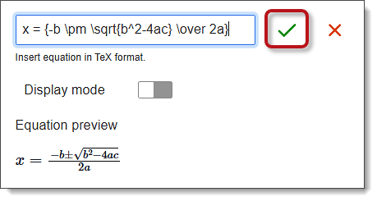
Also, sometimes it takes a minute for the platform to think through the equation to display it (math is hard), so preview the content to make sure it looks the way you want it to.
Add a File
To add a file, click the Add File icon.

From there, you'll be asked to upload a resource.
Links
If you want to link to a website or file already in your Resources, use the link function.

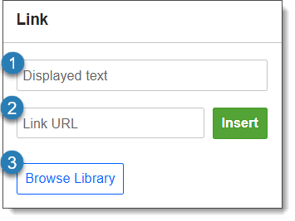
The Link menu has three sections:
- Displayed text: This is the text you want to turn into the link. This should only be blank if you're linking to an image.
- Link URL: If you're linking to a website, this is all you need to add.
- Browse Library: If you have a file already in your Resources that you want to link to, click this and find the file in your Resources.
Video and Audio Files
Amplifire supports the following file formats:
- Audio: MP3
- Video: MP4
- Multimedia: HTML 5 is recommended. To add HTML multimedia, select the appropriate button:
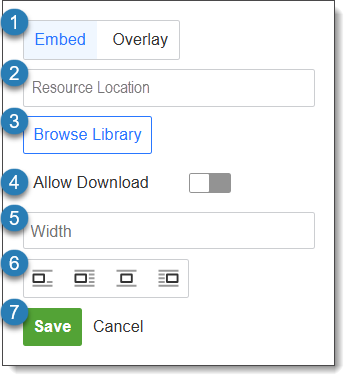
Click the Insert HTML5 Video icon to open the HTML5 video properties where you can:
- Embed content directly or use an overlay image to display the video.
- See the source location (this is not something you need to change or add—it will automatically populate once you attach content).
- Browse the Resource Library for existing videos and upload new videos.
- Allow users in the platform to download the video, or not.
- Set the size you'd like the video to display. This can either be done in pixels or with a percentage (labeled with %).
- Select the alignment.
- Don't forget to save when you're done.
Amplifire authoring also supports the use of audio files. Currently, only MP3 audio files can be uploaded to the platform.
To add an audio file, click the Insert HTML5 audio button. This opens the HTML5 audio properties where you can:
- Upload audio files (Upload tab)
- Align the audio file in the selected field (Audio info tab)
- Allow download of the audio (Advanced tab)
Dynamic Content
To add dynamic content, you'll use either the dynamic content button or the H5P button, depending on the source of the interactive material you want to upload.

For more information on packaging dynamic content for Amplifire, check out Working with Dynamic Content.
iFrames
To add content with iFrames, click Insert HTML.

Then, copy and paste your source code into the field.
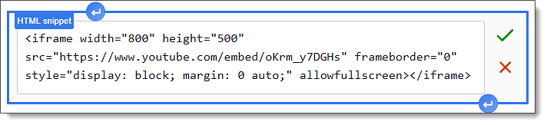
Note: Through lots of trial and error, we have found some additional ways for you to make your iFrames even more beautiful in Amplifire. Try using the code snippet below (substitute your own URL):
<iframe width="800" height="500" src="https://www.youtube.com/embed/oKrm_y7DGHs" frameborder="0" style="display: block; margin: 0 auto;" allowfullscreen></iframe>
The content will then populate into the panel you're currently editing.
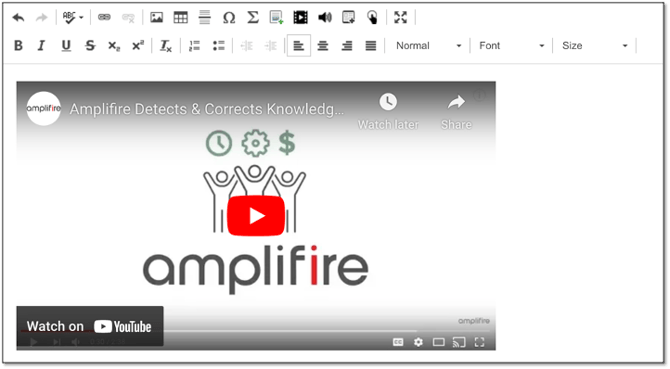
You can also edit the HTML code after you've clicked the green checkmark.
For more information on some of the behaviors currently present in the toolbar, check out CKEditor 5 — Known Behaviors & Workarounds.